> For the complete documentation index, see [llms.txt](https://docs.cdev.shop/llms.txt). Markdown versions of documentation pages are available by appending `.md` to page URLs; this page is available as [Markdown](https://docs.cdev.shop/fivem/cdev-games/installation-guide-qbox-framework.md).
# Installation Guide QBox Framework
{% stepper %}
{% step %}
### Install all resources dependencies
Make sure you have all of the following resources installed:
* cdev\_lib (Include with cdev\_games)
* cdev\_games
{% endstep %}
{% step %}
### Extract and Create Correct Name Folder
➤ Step 1: Create the `cdev_games` folder.
* Extract the contents of cdev\_games.pack.zip into the `cdev_games` folder.
{% endstep %}
{% step %}
### Organizing Your Resource Folders
🚩**Correct folder organization is essential for everything to work properly.**
➤ Step 1: Create the `[cdev]` folder. Inside your server's `resources` folder and Place **only** the following resource inside:
* cdev\_games
➤ Step 2: Add `cdev_lib` to the Resources Root
**Below is an example screenshot showing the correct folder structure:**
{% endstep %}
{% step %}
### Server.cfg Configuration
This resource must always be started **after your ****framework**** and any ****other**** required resources**.
It is essential to follow the correct startup order to ensure proper functionality and avoid conflicts.
**Below is an example screenshot showing the recommended startup order:**
{% endstep %}
{% step %}
### Cdev\_lib Configuration
For the game system and the connection between your framework and the resources to work correctly, you need to configure the `cdev_lib` resource properly according to your framework. For more details, click the link below to follow the instructions.
{% tabs %}
{% tab title="QBox" %}
{% content-ref url="/pages/PkCCFDz1sdRi0ZwCg0nY" %}
[QBCore/QBox Configuration](/fivem/cdev-library/qbcore-qbox-configuration.md)
{% endcontent-ref %}
{% endtab %}
{% endtabs %}
{% endstep %}
{% step %}
### Cdev\_games Configuration
🚩 To work correctly, **cdev\_games** requires the proper configuration of the inventory and framework in the `config.lua` file located in the `cdev_games` folder.\ Below is how the file should be configured to ensure everything functions properly.
{% hint style="danger" %}
**If you're using a different ****inventory****, change the settings according to your custom inventory.**
{% endhint %}
{% endstep %}
{% step %}
### Configuring the items and images in ox\_inventory
{% tabs %}
{% tab title="OX Inventory" %}
{% content-ref url="/pages/aU0p7wumPG42fMVO2irf" %}
[OX Inventory](/fivem/cdev-games/ox-inventory.md)
{% endcontent-ref %}
{% endtab %}
{% endtabs %}
{% endstep %}
{% step %}
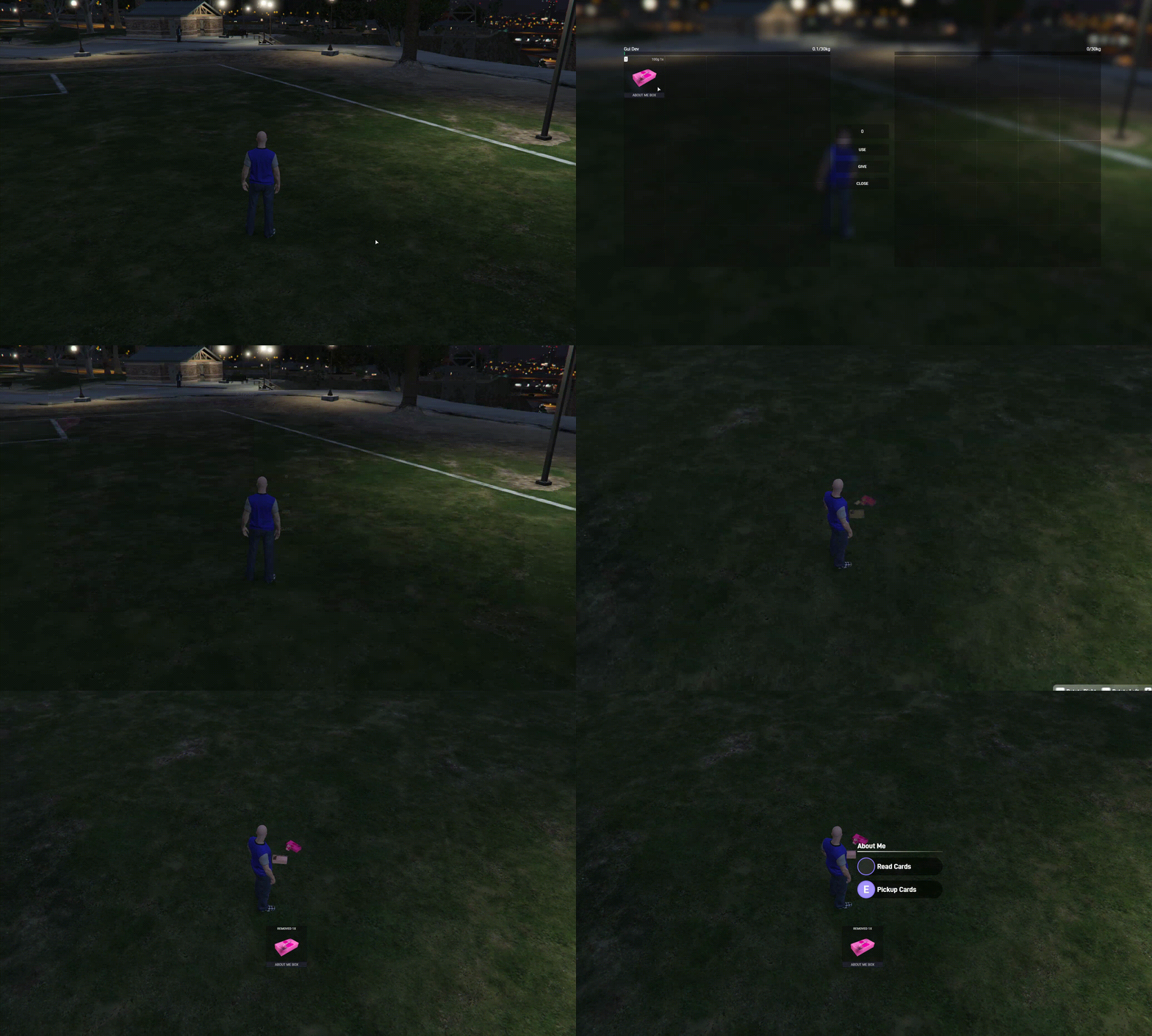
### Using the games in-game
{% hint style="info" %}
T**o interact between the "****Read Cards****" and "****Pickup Cards****" menus, use the ****mouse**** scroll up and down.**
{% endhint %}
{% endstep %}
{% endstepper %}